Using the launcher
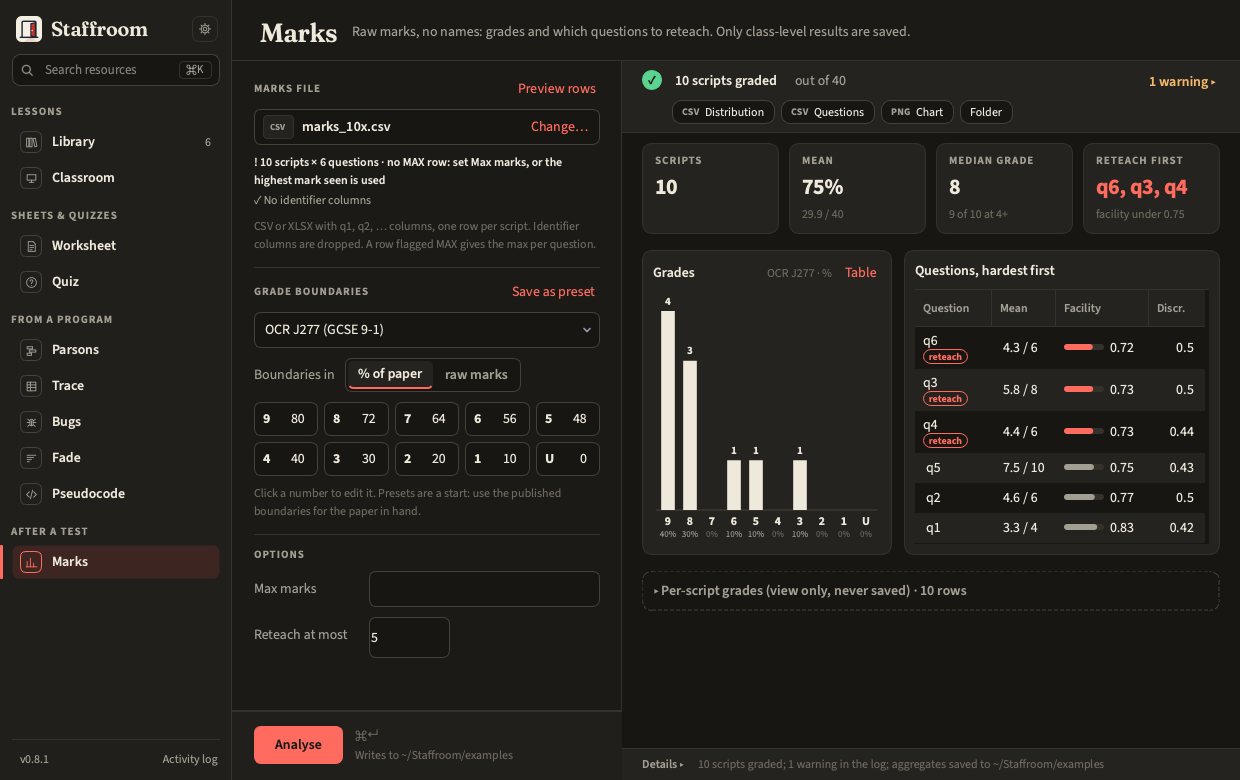
The sidebar lists every place in the app, grouped by the shape of a teacher's week rather than alphabetically:
- Lessons: Library, Classroom
- Sheets & quizzes: Worksheet, Quiz
- From a program: Parsons, Trace, Bugs, Fade, Pseudocode
- After a test: Marks
One line per tool with a small glyph; hover a tool for what it does and its shortcut. The red accent marks only where you are. Above the list, the gear opens Settings and the search field searches the library (typing carries on in the Library's own search box). At the foot: the running version (with up to date, or a link that opens Settings › Updates, once the app has checked: the newer release's number and out for an installed copy, update for a checkout) and Activity log, which opens the log drawer.
A fresh install opens on Classroom; after that the app opens where you left
it, a tool or the Library. (hello, the developers' reference tool, is not in
the list; staff hello still works from the terminal.) A tool someone adds
without a group is listed under Other, at the end.
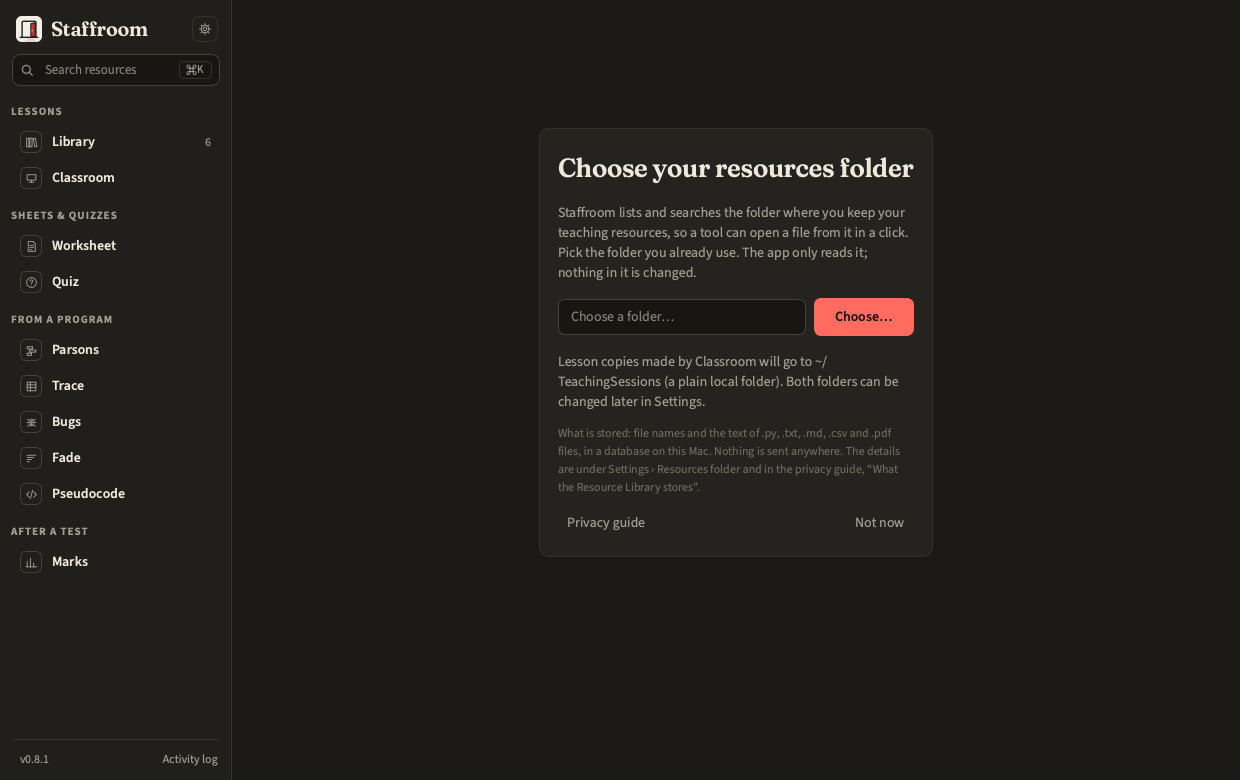
The very first start shows a card asking for the resources folder; choose one or skip it and set it later in Settings.
How files are counted
Every file count the library reports comes from one tally, so the sidebar
count beside Library, the Library column's footer, staff library status and the index summary
always agree. A file is indexed when it is under the resources folder and
the exclusion list allows it; the excluded are never counted. Hidden cruft
(.DS_Store, __pycache__, zips, dot-files), cloud placeholders and files
indexed by name only are counted, and reported as subsets rather than
subtracted silently. Shown is indexed minus hidden: what the tree lists
with Hidden off. So 563 files (24 hidden) · 3 name only means 587 are
indexed, the tree lists 563, and turning Hidden on makes it 587 files
(incl. 24 hidden). staff library status prints the long form:
587 indexed: 563 shown, 24 hidden, 2 cloud-only, 3 name only.
The type filter (All types) and Tags ▾ narrow the tree, and the search
results while there is a query; the two always combine, with each other and
with the query. While either is on, the tree opens all the way down and the
footer starts with what it shows, 3 Python files tagged loops, above the
library's own count, which (like the number beside Library and the header)
does not change.
Pick a tool, fill in the inputs down the left, press the button at their foot
(or ⌘↵). Results appear on the right, beside the inputs, so you can change one
setting and run again without scrolling; a tool with more than one result shows
them as tabs (Trace: the completed table, then the sheet and the key), and
Marks lays its report out side by side. A tool
that writes a sheet shows the PDF itself, page by page, under Sheet and Key
tabs: the current page large, every page as a thumbnail beside it, Open PDF
and Print… under them. Told to write Word only, it says so over the plain
text instead. Files are
written to the output folder, named beside the Run button before you press it:
next to the input by default,
~/TeachingSessions/outputs/<tool>/ for tools with no input file, or
wherever Settings says (Outputs has the rule and every tool's
file names).
After a run, the strip along the top of the results says how it went: a tick and what was made ("10 questions · seed 42, medium"), or a cross and why it stopped. Each file written is a button beside it (PDF Sheet, PDF Key, DOCX Sheet …): click to open it in its app, right-click to show it in Finder. Folder opens the output folder (before the first run, Open output folder does). Warnings show as a count ("3 warnings ▸") that opens the list. Details ▸ at the foot of the results opens the log of that run, exactly what happened; it stays open or closed per tool until you quit. The log drawer (⌘L) and the log file hold the app-wide log, described in Privacy.
Shortcuts
| Keys | Does |
|---|---|
| ⌘↵ | Run the tool on screen (its button at the foot of the inputs) |
| ⌘K | The Library, with its search box ready |
| ⌘O | On the Library with a file showing: open it for class (or jump to its lesson label); anywhere else: Classroom with the library picker open |
| ⌘1 – ⌘9 | Switch tool, in sidebar order (the Library is ⌘K): ⌘1 Classroom, ⌘2 Worksheet, ⌘3 Quiz, ⌘4 Parsons, ⌘5 Trace, ⌘6 Bugs, ⌘7 Fade, ⌘8 Pseudocode, ⌘9 Marks |
| ⌘L | Show or hide the activity log |
| ⇧⌘L | Switch between the dark and light theme (also in Settings) |
| ⌘, | Settings |
Settings
| Setting | Meaning |
|---|---|
| Theme | dark or light |
| Output folder | where tools write; empty means next to the input, or <sessions folder>/outputs/<tool> when there is none or the input is in the resources folder |
| Resources folder | what the Resource Library indexes (read-only to every tool), and the folders under it to keep out of the index |
| Sessions folder | where Classroom puts lesson copies; local by default |
| Editor | Thonny, IDLE, system default, or Custom with a Command in which {file} is the lesson copy |
| Exam board | OCR J277 or AQA 8525: the grade preset Marks starts with, and the gates a GCSE truth-table worksheet may use |
| Header / footer text | printed on every sheet and key, from every tool (the Worksheets card, with the exam board) |
| Logging | the level of the app log (INFO by default), and buttons to reveal the config file and the log |
| Updates | an installed copy: this version, the newest release and what changed, Check again, the tick box Look for a new release when Staffroom opens (at most once a day), and the one command to paste (uv tool upgrade staffroom) with Copy, or the install line once for a copy pinned to a release; from a checkout: check for and apply an update. See Updating |
Everything is saved to ~/.config/staffroom/config.toml as you change it.
Words the panels use without explaining (seed, facility, ERL, do-now…) are
in the Glossary.
The command line
Every tool is also a staff subcommand with the same options. staff --help
lists them; staff <tool> --help shows a tool's commands. The CLI is the
primary way the tools are tested, so if something works in the panel it
works in the terminal and vice versa.