Trace
Runs a program step by step in a sandbox and produces a blank trace table for pupils and a completed one for you.
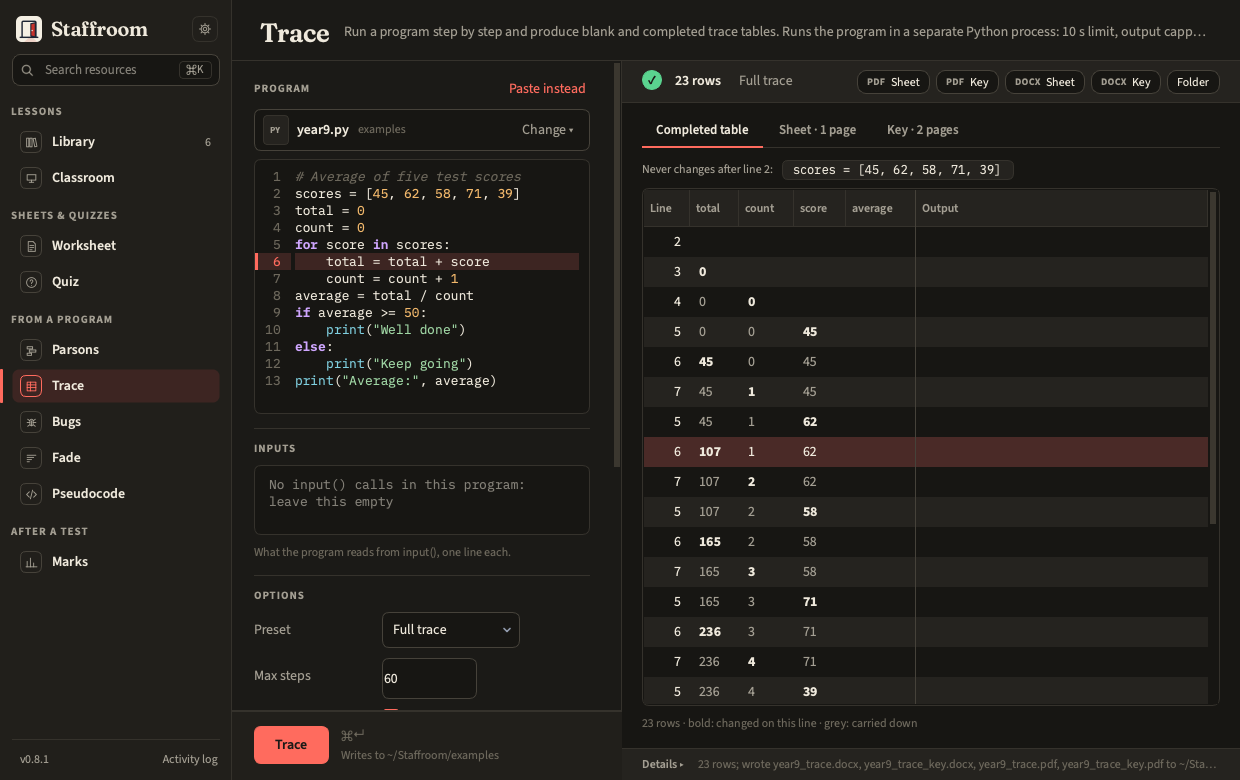
The program sits on the left, numbered as the sheets number it: choose it from the Library or with Browse…, or Paste instead for code that is in no file. It is shown, not edited (Thonny is the editor); save it there and the panel shows, and the next run uses, what you saved. Click a row of the table and its line lights up in the program; click a line and the table selects every step that ran it. The arrow keys move through the rows.
On screen the completed table is made to fit the pane, whatever the window
width. A value that never changes once set, and repeats on at least half the rows (the
list of scores a program starts with), is lifted out into one line above it:
Never changes after line 2: scores = [45, 62, 58, 71, 39]. Columns are as
wide as their values; a value is bold on the row where it changed and
grey where it is carried down from the row above; and Output, what the
program printed, always sits at the right edge. If a program has more
variables than fit, the others scroll sideways under it. The printed blank
table and key are not changed by any of this: they keep every column.
Each row is one executed line with every variable's value after that
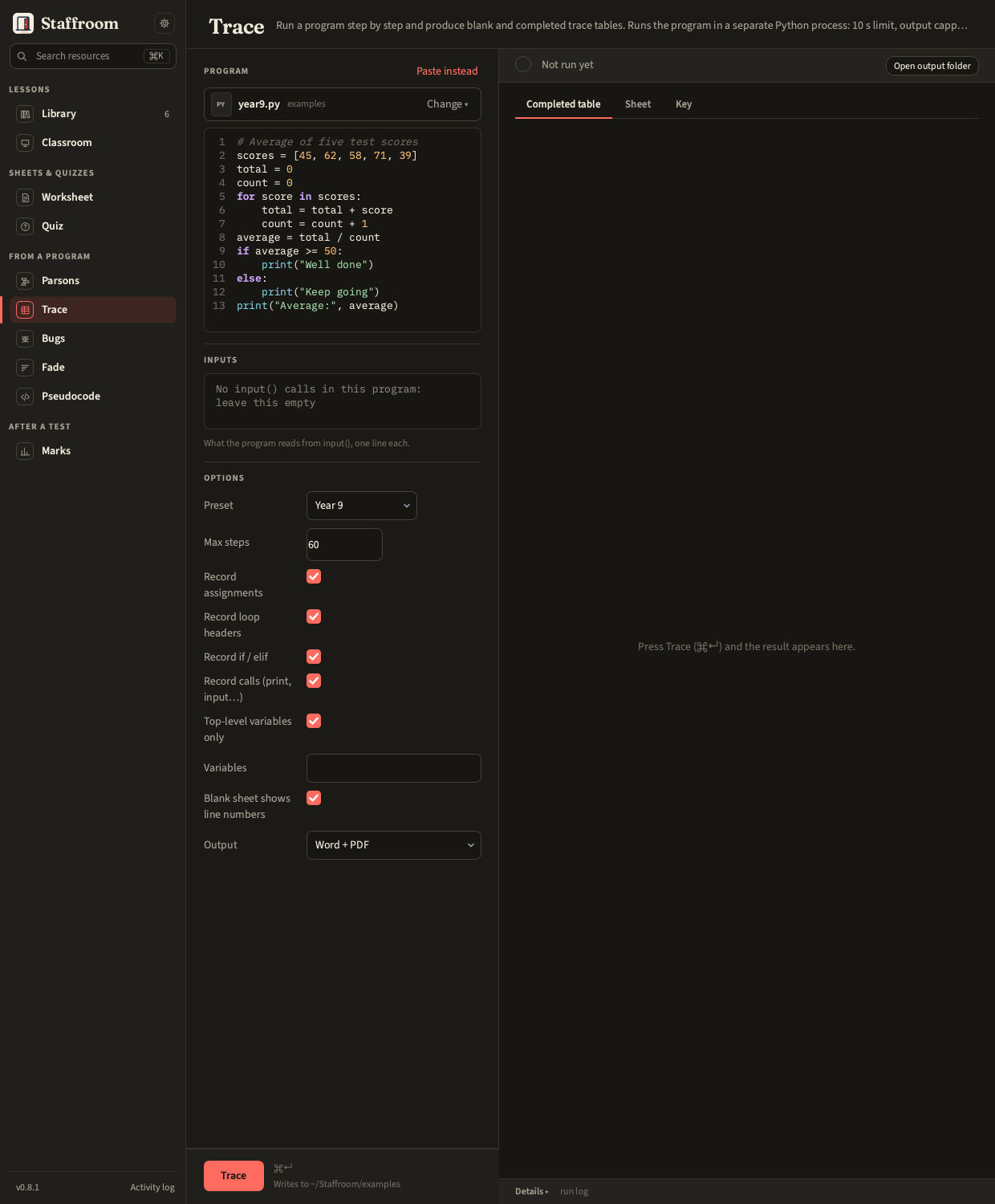
line and anything it printed. The Preset dropdown picks the shape of the
table: Full trace (the default) records every line, including those run
inside functions, with a Scope column naming the function and a column for
each of its locals; Year 9 (Top-level variables only, or
--top-level-only) leaves the function's own steps and locals out, so the
sheet has just the program's top-level variables and no Scope column. The
header of every sheet names the preset it came from; a table whose settings
match neither says Custom. You can still choose which lines to record
(assignments, loop headers, ifs, calls) and which variables to show
(Variables, or --vars). Max steps (60 by default) caps the rows and the
sheet says when it was hit.
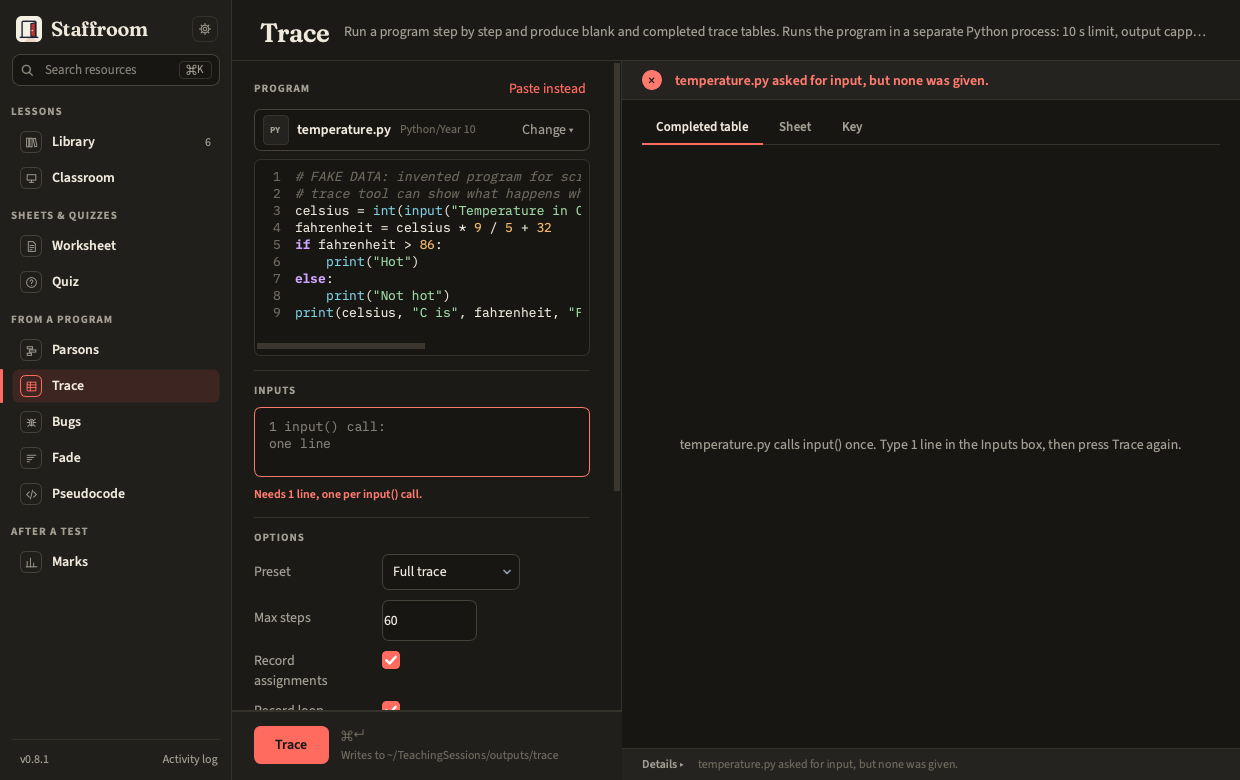
Programs that read input take it from
the Inputs box, one line per input(). The box says how many input()
calls the program has (2 input() calls: one line each), or at least that
many when one is in a loop or a function. If the program asks for more
input than the box holds, the run stops and nothing is written: the result
strip says what happened, the result pane says how many lines to type, and
the Inputs box is outlined until you type in it. Fill it in and run again
(on the command line, give the lines with --stdin). A program that ends with
any other error still gets its sheet; the key and the result strip say which
error.
Files: <stem>_trace.docx / .pdf is the blank table, <stem>_trace_key
the completed one (Outputs).
The program runs in a separate Python process with a 10 second limit, a temporary working folder, a 1 MB cap on what it prints and a refusal to run files that import networking modules. An infinite loop is killed and reported; a print flood is cut at the cap and the key says so. This is not a security sandbox: see Running pupil code.
staff trace make program.py --stdin "5\n3" --steps 60 --vars total,count
staff trace make program.py --top-level-only   # the Year 9 preset